START WITH YOUR QUESTION
How to Make an AI Dance Video from One Photo
Turn one adult photo into a short dance clip. Choose a preset, duration and aspect ratio, then use the real generator embedded in this guide.
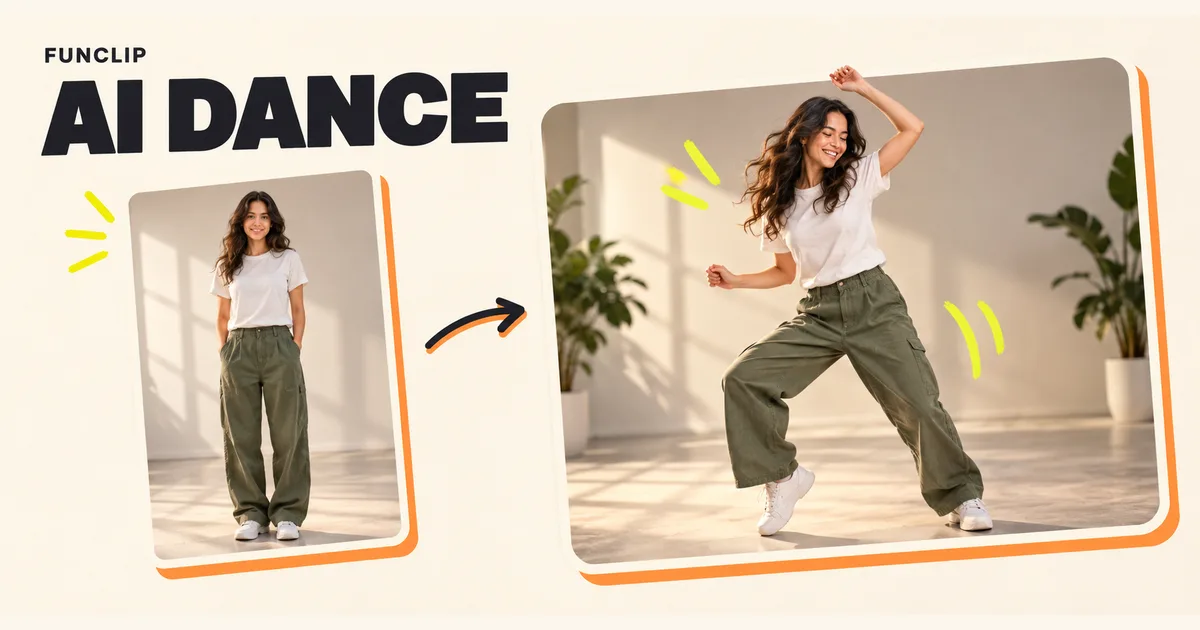
RapVideo's AI Dance tool animates one adult photo into a short dance clip. Choose a preset, select 5 or 10 seconds, choose the aspect ratio and decide whether to request audio. Add an optional short note, then generate below. The tool lives at the AI twerk generator URL, but the visible editor is labelled AI Dance.
Give the model a readable body and outfit
Start with a sharp photo of one consenting adult. For a dance clip, a full-body or generously framed photo can supply information about clothing, posture and shoes. A close facial portrait provides less evidence about the rest of the person, so the model must invent more.
Use even lighting and a pose that is easy to understand. Hands hidden behind the body, cropped feet and busy overlapping silhouettes can make the input harder to interpret. Avoid a group shot unless you can crop it to one person without leaving a tiny face.
A photo is an identity and appearance reference. It is not a motion recording. The generator will synthesize movement; it cannot recover a dance that was never captured in the input.
Choose the format before generating
The editor offers two presets, 5- or 10-second duration, and 9:16, 16:9 or 1:1 aspect ratio. Use the displayed preset names and example to choose the intended format rather than assuming the two options reproduce an exact choreography.
Portrait 9:16 gives a standing performer more vertical space. Landscape 16:9 can leave more room around the dancer. Square 1:1 may suit a square post, but check that feet and hands remain visible. The selected ratio affects the generated composition; cropping afterward is a separate editing decision.
Five seconds keeps the action brief. Ten seconds gives more time for movement, but it is not a promise of better consistency. Inspect the entire result either way.
Add a small amount of direction
Optional notes are useful for a concise compatible request, such as “steady camera, whole body visible, simple background.” Keep the instruction focused on the scene you want to see.
Avoid asking for several locations, outfit changes and camera cuts in one short clip. Notes are guidance, not a timeline or a pose-by-pose choreography editor. The tool does not offer a reference dance-video upload or a guarantee that every joint follows an exact sequence.
The audio checkbox requests generated audio. It is not an upload control for your own song, a named artist's voice or a licensed trend recording. You can turn it off if you plan to add your own permitted soundtrack in an editor.
Create the video here
- Choose a preset, duration, aspect ratio and audio setting.
- Add the adult photo and inspect the preview.
- Add a short optional note.
- Sign in, confirm permission to use the photo and check the credit requirement.
- Generate once, then review and download the MP4.
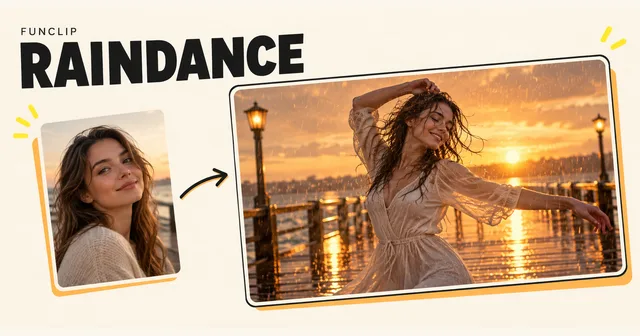
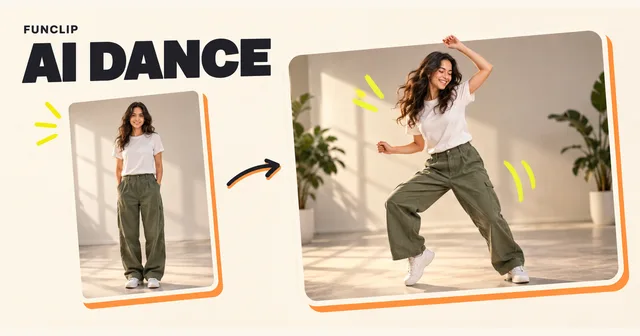
The output uses the 1080p tier. The cover above is an editorial illustration rather than an actual tool result; the playable sample provides a better reference for motion. Your result can differ in framing, face detail and movement.
Inspect movement before posting
Watch the face during turns, the number and position of visible fingers, the legs when they cross, and the feet near the edge of the frame. Check whether clothing stays coherent as the dancer changes pose. Fast motion can briefly hide or distort details.
If part of the clip works, trimming it may be more useful than immediately generating another full version. If you need a different crop or soundtrack, make those changes in an editor after downloading. This generator has no per-frame repair brush.
For a fixed short performance with fewer settings, see the Bulin guide. For two people, compare Raindance solo and duo; adding a group picture to this single-photo dance tool does not turn it into that workflow.
Cost and recovery
Each complete AI Dance generation costs 100 standard credits. Shared packs cost $9.90 for 100, $18.90 for 200 and $44.90 for 500 credits, valid for 365 days. There is no free trial or automatic renewal. Check the displayed cost before starting a new attempt.
If a task remains pending, check My clips with the same account before resubmitting. Closing a tab does not cancel it. Technical failure restores the charged credits for the failed task; completed but unwanted results still use credits. Credit restoration is not an automatic cash refund.
Download while signed in, and share the saved MP4. Private result URLs require access to your account.