START WITH YOUR QUESTION
How to Make an AI Rap Video from Photos
Create a solo or duo AI rap with a scene preview followed by a 10-second video. Use the embedded generator and understand the 10 + 90 credit workflow.
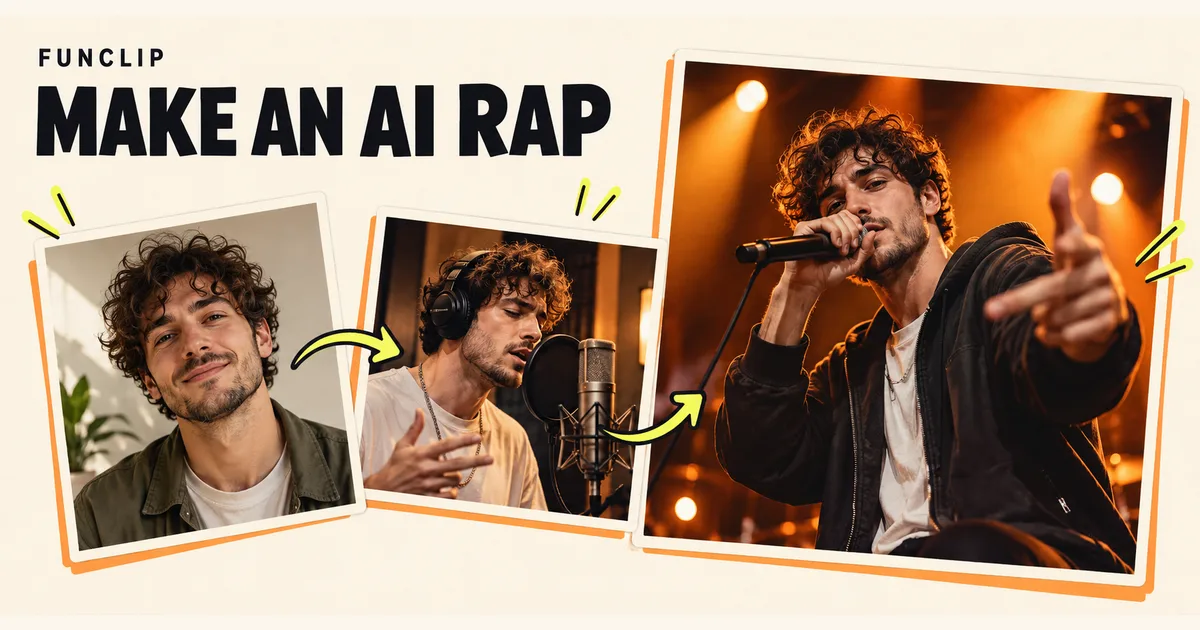
RapVideo's AI Rap tool turns one or two adult portraits into an original short rap performance. Choose solo or duo, select a setting and theme, generate a scene image, then animate that scene. The scene costs 10 standard credits and the video step costs 90, for 100 credits when you complete both steps once. You can do both steps in the generator below.
Decide the cast, setting and topic
Choose Solo for one performer or Duo for two. Prepare one separate portrait per person, with visible eyes, a clear face and even light. Use photos of consenting adults. For a duo, review the order of the two previews before generating.
The setting choices are studio, street and stage. Pick a setting that fits the intended message: a studio focuses attention on the performer, while a stage suggests a concert presentation. These choices guide the scene; they do not give precise control over props, camera placement or lighting.
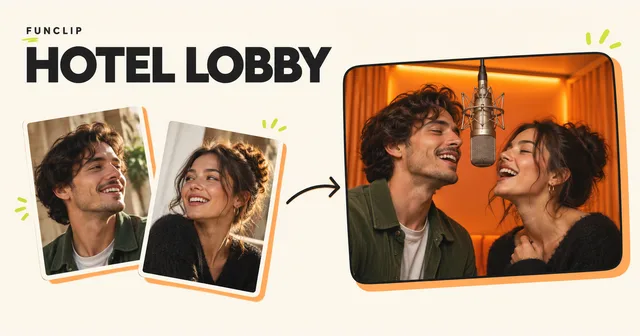
The available themes are friends, birthday and team. Choose the closest match rather than expecting a full lyrics editor. This tool does not expose custom notes or an audio-upload field. If you need a short custom English rap theme within a fixed orange booth, see the Hotel Lobby duet guide.
Generate and inspect the scene first
- Set the mode, setting and topic.
- Add the required photos and confirm permission to use them.
- Sign in and review the selected credit pack or your balance.
- Generate the scene image.
- Look closely at that image before pressing the animation button.
The scene is an actual first step, not a free preview. Check the cast, faces, clothing and composition while the result is still. If the wrong person is in the scene, animating it will not replace that person with a different reference.
Reviewing a scene does not guarantee consistent faces in motion. It does give you a chance to notice an unsuitable starting composition before spending the 90 credits for video. A replacement scene is another paid generation; the initial 10 credits are not automatically returned because you dislike its appearance.
Animate the scene into a rap video
Once the scene is ready, use the animation control in the same generator. The video output is a 10-second, 1080p, 9:16 MP4 with generated audio. The workflow has two distinct tasks, so an existing scene can remain available while its video is pending.
A ten-second performance can express a simple theme. It is not a full song, a music-track editor or a reliable way to reproduce a paragraph word for word. Generated wording, pronunciation, voice, timing and lip-sync can vary. The tool creates original audio; it does not supply a named artist's voice or a licensed commercial song.
Do not press the animation button repeatedly when a request is slow. Check the existing task and My clips in the same account. A network timeout is not proof that generation failed.
Watch the face and listen to the words
Play the result from beginning to end with sound. Listen for unexpected wording and pronunciation, especially if the clip is a birthday message or will be shown at work. Check that the result is appropriate for its audience before sharing it.
For a duet, inspect both performers during turns and overlapping gestures. The still scene can look good while a face changes in motion. Watch the microphone, teeth, hands and the transition into the last frame. The tool does not include a word-by-word lyric correction or per-frame repair feature.
If the visual is useful but you need different audio, you can edit the downloaded file using sound you have permission to use. That is a separate workflow and may no longer match the generated lip movement.
Understand the credit balance
Shared packs cost $9.90 for 100 credits, $18.90 for 200 or $44.90 for 500, with a 365-day validity period. There is no free trial or automatic renewal. One 100-credit pack covers one scene followed by one video, provided you do not spend those credits on other tasks.
If you make several scenes before animating one, those scene charges reduce the balance available for video. Check the displayed requirement at each step rather than treating the pack as unlimited scene attempts.
Technical failures restore the credits charged for the failed task. If a scene succeeds but a later video task fails, the successful scene is not itself a failed task. Restoration of credits is different from a cash refund; completed but unwanted results still use credits.
Download and share the finished clip
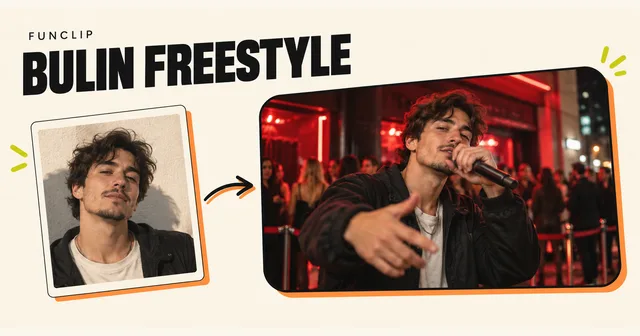
Download the MP4 while signed in and send the saved file through your preferred app. Private result links require account access. If you mainly want a quick fixed performance without the scene-review step, compare the Bulin single-photo guide.