START WITH YOUR QUESTION
Best Photos for AI Rap Videos: Portrait Selection Tips
Choose clear portraits for solo or duo AI rap videos. Check lighting, cropping, formats and file limits, then try your photos in the generator on this page.
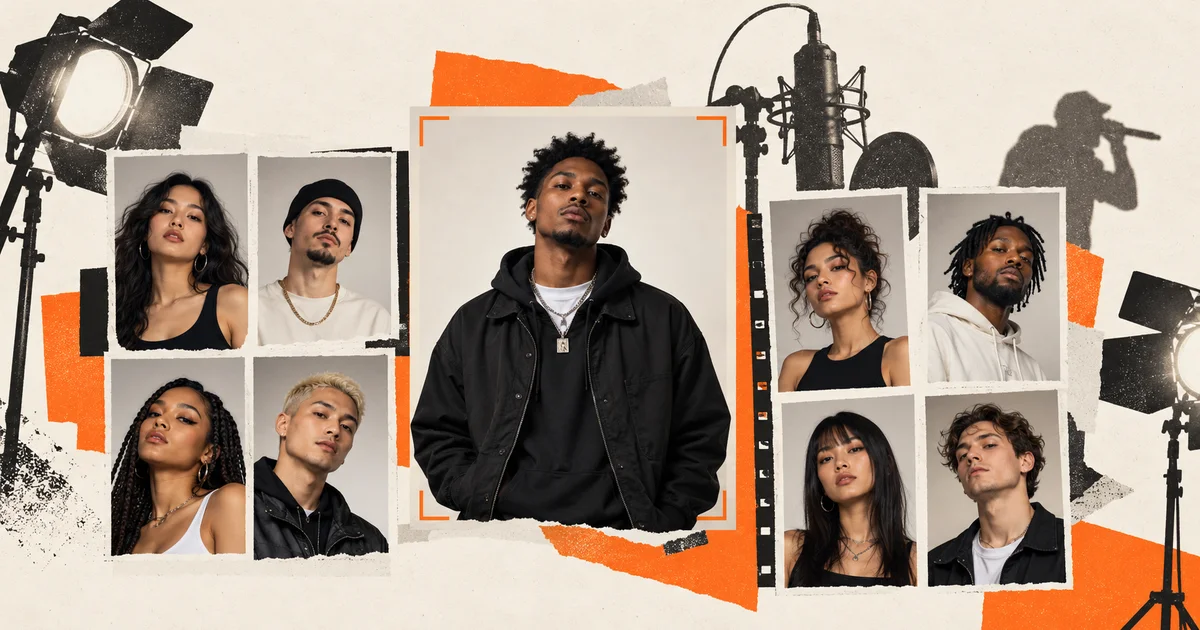
For an AI rap video, start with a clear photo of one adult facing the camera, with visible eyes and mouth and even light across the face. Use one portrait for a solo performance or two separate portraits for a duo. RapVideo accepts JPG, PNG and WebP, plus supported HEIC/HEIF photos through local conversion. Each file must be under 10 MB and no more than 40 megapixels. Good input makes the face easier to read, but cannot guarantee likeness or lip-sync in the finished video.
Pick the photo that shows the face clearly
Compare your candidate photos at the size you will actually upload. A larger file is not automatically better. Look closely at the eyes, teeth and edges of the face. A sharp, naturally lit portrait is usually more useful than a heavily edited image with smooth skin and missing facial detail.
Choose a photo taken close to eye level. Keep the whole face inside the frame, with some space above the head and around the shoulders. A waist-up portrait gives context for clothing and posture. Avoid extreme close-ups that cut off the chin or forehead, and wide group photos where the person is only a few pixels tall.
You do not need a professional headshot. A phone photo near a window can work as an input if the face is in focus and clearly visible. Face the light instead of standing with a bright window behind you. Strong side lighting can hide one eye or part of the mouth, leaving the generation to infer those details.
Compare common photo problems
| What you see in the photo | What to try before uploading |
|---|---|
| Sunglasses, a hand or hair covering the face | Choose another portrait with the eyes and mouth visible |
| Motion blur around the eyes or mouth | Use the original sharp photo or take a new one |
| A beauty filter changes the nose, jaw or skin | Find the unfiltered original |
| Several faces in one image | Crop each intended adult into a separate portrait |
| A tiny face after cropping | Use a closer photo instead of enlarging the same small crop |
| Bright backlight with a dark face | Choose a photo with more even light |
| A screenshot containing buttons or text | Use the original photograph |
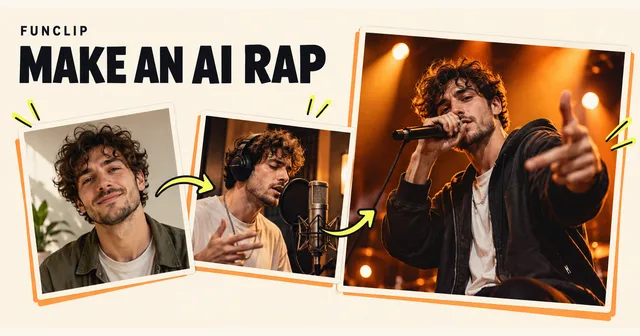
These are input checks, not promises that one photo will always produce a better result than another. The illustration at the top of this article explains the topic; it is not a measured comparison of generation quality.
Prepare one portrait for each performer
The solo and duo rap studio needs one portrait in Solo mode and two in Duo mode. In a duo, review both upload slots and their order before generating. Use a different individual in each slot if you want two distinct performers.
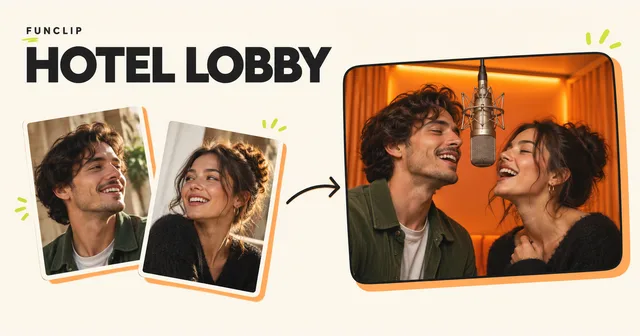
If your only source is a photo of both people together, crop it into two separate portraits first. Check that each crop still has enough facial detail and does not include part of the other face. The same preparation applies to the Hotel Lobby duet, which is a scene in the same Rap studio and supports the selected Solo or Duo mode. Its photo guide covers preparing clear portraits.
Use photos you have permission to upload and obtain consent from each person depicted. Do not use a convenient image from someone else's social profile as a substitute for permission. Human portraits must show consenting adults. For one cat, choose Starter 480p and Solo mode; Standard and Duo do not support cats. This guide does not claim support for children or arbitrary cartoon characters.
Check format, size and the local preview
Keep each file under 10 MB and within the 40-megapixel limit. Those are separate checks: a highly compressed image can have a small file size but very large dimensions. JPG, PNG and WebP are supported. HEIC/HEIF input is converted locally when supported; inspect the resulting preview before continuing.
If a photo cannot be decoded, export it as JPG, PNG or WebP and select that exported file. Renaming a filename extension does not convert the image. Avoid taking a screenshot of the error or repeatedly uploading the same unsupported file.
Reading the guide and selecting local photos do not generate a video. AI generation requires a one-time payment and delivery email; no account is required. Selecting a local photo is not a free generated preview. A standard 1080p rap video costs $9.90. Starter 480p costs $4.90 for one video. Both are one-time purchases, with no subscription. The available tools and their output formats are listed in the AI rap video overview.
Submit your photos and review the finished video
Choose Solo or Duo, select a setting and theme, and check the photos in their upload slots. Confirm permission, enter your delivery email twice, review the purchase and complete checkout. One submission produces the complete video. The standard result is a 10-second, 1080p, 9:16 MP4 with generated English audio. Changing the interface language does not change the voice language.
Hotel Lobby is a scene in the same Rap generator, with the same standard 10-second, 1080p output. Choose it for the orange-booth setting. See the rap walkthrough and Hotel Lobby scene guide.
The generator does not guarantee exact facial identity, gestures, words or lip-sync. Watch the full result, especially when hands cross the face, the mouth opens or two performers overlap. Listen to the audio as well as checking the picture.
When a new photo is worth trying
If a face was already blurred or obscured in the input, choose a clearer source before another attempt. If a face looks right at first but changes during motion, a different photo may help, but it is not a guaranteed repair. There is no per-frame face repair or word-by-word audio correction in these tools.
Another generated version is a new paid attempt. Technical failures restore the right to make the failed video, rather than automatically refunding cash. Completed but unwanted results are not technical failures; review the pricing and refund terms before planning several attempts. For a pending task, open the existing order link from your email before retrying. A slow response is not proof that the job failed.
Once your photos are ready, use the generator on this page or choose a birthday rap greeting. Keep the first message simple and check the finished file before sharing it with other people.